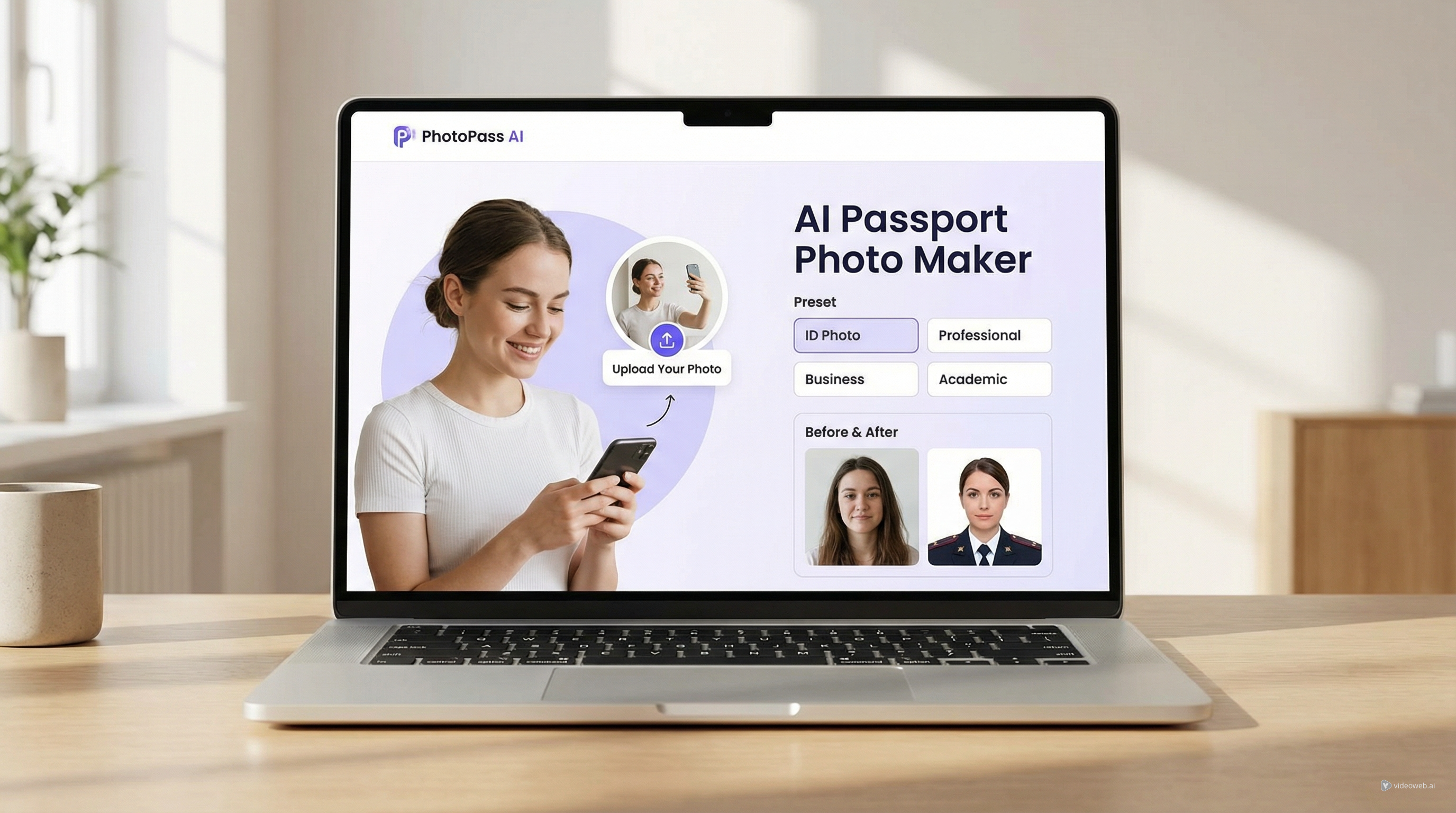
If you need a document-style photo quickly, TryOn AI’s Passport Photo Maker is built around a very simple idea: upload a portrait, choose the right mode, and click Generate. That alone makes it more approachable than traditional editing workflows that force you to resize, crop, remove backgrounds, and fine-tune lighting by hand.
What makes this tool especially practical is that it works on two levels at once. On the surface, it is a beginner-friendly AI for passport photos that can produce targeted results with almost no setup. Under the hood, it still gives you room to adjust prompts, switch standards, and refine the output when you want more control.
For users who just want a fast result, that balance is the main selling point.
A Practical First Impression
A lot of tools promise one-click results, but many still hide extra complexity behind the interface. This one feels closer to what most people actually want. The basic flow is clear from the moment you open the page:
- Upload an image.
- Choose a template or picture standard.
- Click Generate.
That is the core workflow. You do not need to build a prompt from scratch, guess the background instructions, or manually figure out framing before getting a usable result. For anyone making an AI passport-size photo at home, this is exactly the kind of friction reduction that matters.
The interface also makes sense for beginners because the presets are visual. Instead of translating every requirement into prompt language yourself, you can start from templates such as Professional, ID Photo, Sophisticated, Academic, Business, Casual, Modern, Tech, and Energetic. That makes the tool feel more like a guided editor than a blank image-generation box.
Why the Ready-to-Use Workflow Works So Well
The strongest part of the experience is that the tool already knows what most users are trying to achieve. When someone needs a passport or ID image, they usually want four things:
- a centered, front-facing portrait
- a plain or compliant background
- clean lighting
- a polished crop that looks official rather than casual
This is where the passport photo AI tool feels useful rather than gimmicky. It is designed around a targeted output instead of asking users to improvise. That makes it much easier for people who are not designers, photographers, or prompt-heavy AI users.
It is also a better fit for speed. If your goal is simply to turn an existing portrait into a document-style image, the ready-made setup saves time compared with opening several separate tools for background removal, retouching, and cropping.
How to Use It Step by Step
1. Upload a clear source photo
Start with a clean portrait where your face is easy to see. Front-facing images work best. Strong shadows, dramatic angles, or accessories that hide parts of the face can make any ID-style result less reliable.
2. Select the most suitable mode
If you want the strictest document look, begin with ID Photo. If you need something more formal but slightly broader in style, Professional or Business may be better starting points.
This matters because different modes are not just cosmetic labels. They help steer the output toward different visual standards.
3. Click Generate
This is the part many users will appreciate most. You can simply generate without doing extra prompt work first. That makes the tool a true shortcut for anyone who wants a quick AI for passport photo creation workflow.
4. Review and refine if needed
If the first result is already usable, you are done. If not, you can improve it by changing the mode or editing the prompt directly.
That “simple first, customizable second” structure is one of the best parts of the product.
Presets and Standards: More Useful Than They Look
One of the smartest details here is that different modes automatically update the text prompt. That means the tool is not only changing the preview style; it is also adjusting the generation instructions behind the scenes.
This is especially helpful when you want to move between stricter and looser standards without rewriting everything yourself. For example:
- ID Photo is a natural choice for official-looking images.
- Professional works well for formal headshots.
- Academic can suit school or institutional profiles.
- Business leans toward polished office-ready portraits.
- Casual and Energetic are less strict, but useful if you want cleaner everyday profile images rather than government-style output.
That flexibility makes the tool more than a single-purpose passport generator. It can also work as a convenient portrait cleaner for ID cards, resumes, company directories, and student profiles.
It also helps users who worry about passport photo size and formatting. While official size rules still vary by country and application type, the preset-based workflow gives you a much better starting point than a general image editor. You are not beginning from a blank canvas.
Manual Prompt Editing Is There When You Need It
A lot of AI tools fail in one of two ways: they are either too rigid or too open-ended. This one avoids both problems fairly well.
The default prompt does the heavy lifting, but you can still edit it when you need more precision. That is useful for cases like these:
- you want a stricter neutral expression
- you need a plain white background
- you want the face fully visible
- you need to remove accessories such as glasses or hats
- you want the image to look sharper and more compliant
This means the tool is accessible to beginners without limiting more careful users. You can treat the preset as a starting point, then refine it instead of writing every instruction from scratch.
For an AI passport-size photo generator, that is a strong middle ground. It keeps the process fast while still letting users solve edge cases.
Output Quality: What It Does Well
The main advantage is not artistic flair. It is controlled usefulness.
That may sound less exciting than creative image generation, but it is exactly what document-photo users need. A good passport or ID image should look clear, neutral, and appropriately framed. This tool is strongest when it focuses on that job.
Here is where it performs well in practice:
Clear structure
The workflow is easy to understand immediately. That reduces user error and makes the tool friendly for first-time visitors.
Fast targeting
The modes help the generator aim at a specific type of portrait instead of a vague “professional-looking” image.
Easy customization
Users who need more control can adjust the prompt instead of starting over somewhere else.
Broader utility
Even though the name emphasizes passports, it also makes sense for visa-style images, profile updates, and formal ID photos.
A Few Realistic Caveats
The best review of a tool like this should include one important reminder: no AI generator can replace checking the exact photo rules for your country or document type.
So while this tool can help you create a cleaner passport-size photo or a polished ID-style result, you should still verify things like:
- official dimensions
- background rules
- expression rules
- head positioning requirements
- glasses or accessory restrictions
In other words, this is a very convenient creation tool, but final compliance still depends on the standard you need to meet.
It is also worth remembering that the source image matters. A straight, well-lit original photo will usually produce better results than a dark, angled, or heavily stylized one.
Who Should Use It
This tool is a strong fit for:
- people who need a passport or ID-style photo quickly
- users who do not want to learn manual editing
- job seekers updating formal headshots
- students preparing profile or campus ID images
- creators who want a fast route from ordinary photo to clean portrait output
If you want a one-click experience first and optional control second, this is one of the more intuitive ways to get there.
Final Verdict
TryOn AI’s Passport Photo Maker succeeds because it understands the real job: most users do not want to “create art.” They want a photo that looks correct, clean, and ready to use.
That is why the tool works. It removes the unnecessary steps, keeps the workflow short, and still leaves room for prompt refinement when needed. The automatic mode switching is especially useful because it lowers the barrier for beginners while quietly giving better structure to the output.
As a result, this is not just a novelty AI for passport photos tool. It is a practical, lightweight utility for turning everyday portraits into more formal, standardized results with minimal effort.
More TryOn AI Tools and Models Worth Exploring
If you like this workflow, several related tools on the platform make sense as next steps:
- AI Headshot Generator for more polished corporate and profile portraits
- Profile Picture Maker for social, branding, and avatar-style profile images
- Free Background Remover for cleaning up source photos before generation
- Image to Prompt for extracting prompt language from reference images
- AI Image Generator for broader portrait and creative image workflows
- Photo to Video for turning finished images into short animated content
If you want to explore the model side of the platform, start with:
Related Article
- How to Use AITryOn’s Free AI Background Remover for Cleaner Images and Faster Creative Workflows
- How to Turn Any Reference Image Into Better AI Prompts With AITryOn
- How to Create Authentic UGC Images with Virtual Try-On AI (That Actually Convert)
- AI Hairstyle Changer Guide: Try New Haircuts Online Before You Commit
People Also Read
- HeyDream AI Image Generator Guide: Best Models for Text-to-Image and Image-to-Image
- How to Turn Real Photos into Anime Art with HeyDream AI
- How to Use DreamMachine AI’s AI Video Generator: A Practical Guide for Text and Image Workflows
- Try Veo 3.1 in Dream Machine AI: A Practical Guide to Text-to-Video and Image-to-Video Creation
- Seedance 2.0 Video Generation Guide (Tutorial + Prompts)
- Kling 3.0 on VideoWeb AI: What’s New & How to Get Cinematic Results
- How to Use Sea Imagine AI’s Image Generator: A Beginner-Friendly Tutorial
- The 2026 Image-to-Video Guide for Sea Imagine AI: Best Models & Prompts