The practical answer to Gemini Omni vs Veo 3 is workflow fit, not a simple replacement story. Gemini Omni should be treated as an upgrade-watch or new Google-style multimodal workflow direction unleTryOn AIss your live TryOn AI account confirms current access, controls, and output settings. Veo 3 is the more established Google video generation option for cinematic text-to-video and image-to-video clips, especially when audio direction matters.
For creators, marketers, fashion brands, UGC editors, product sellers, and AI video users, TryOn AI is useful because it connects model pages with fashion, photo-to-video, product-to-video, and TikTok-style creation workflows. Use this guide to compare both paths, then test the same prompt in each available tool before choosing one for production.

What Gemini Omni and Veo 3 Mean for AI Video Users
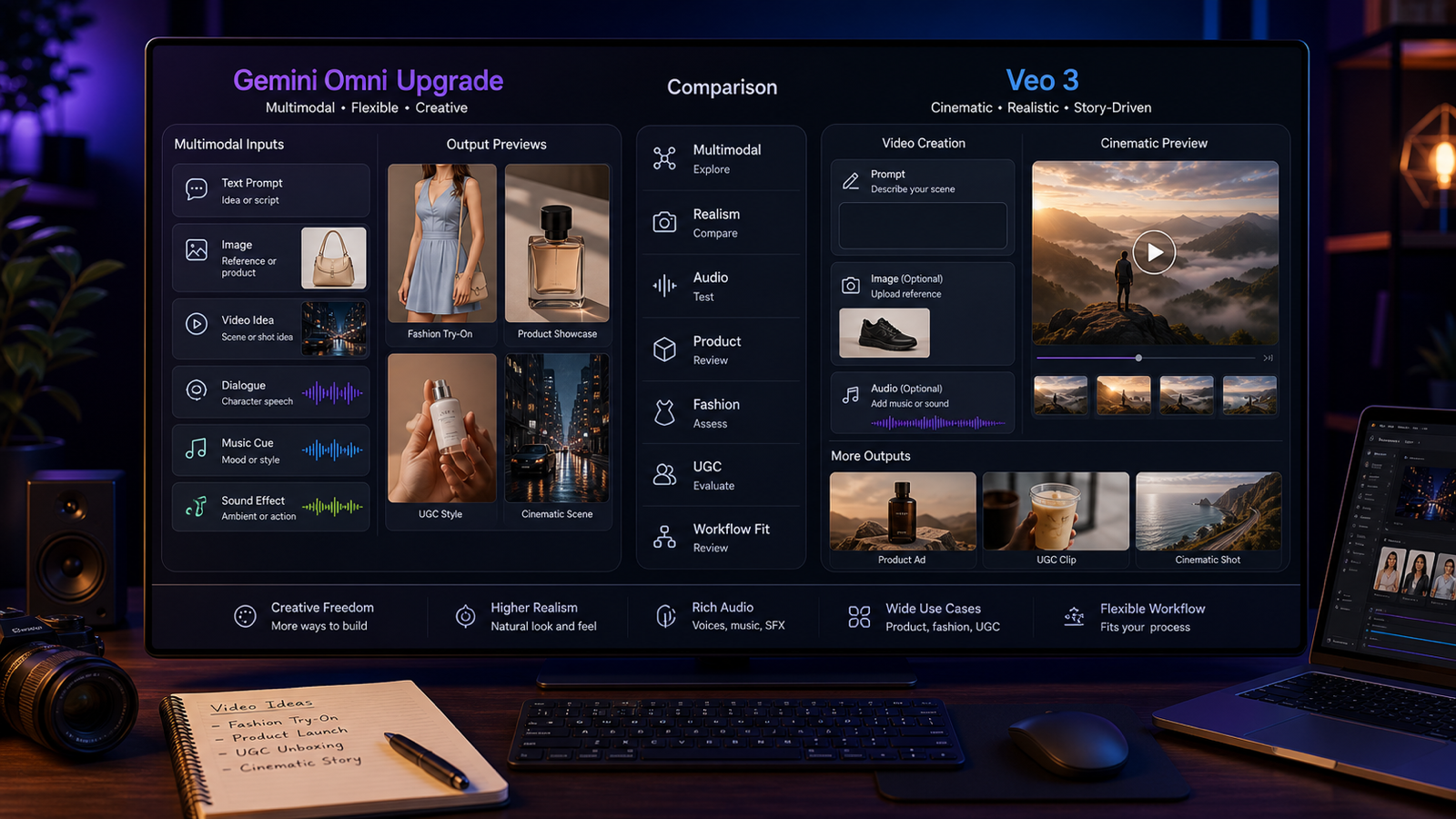
The Gemini Omni AI video generator page is best framed as a newer Google-style multimodal direction. It points toward video creation guided by text, image, video idea, dialogue, music cue, and sound-effect inputs, but the live page should be checked for current access before you plan a production workflow around it.
The Veo 3 AI video generator is the more established path for cinematic generation. Veo 3 is useful when you want a clear prompt, image-to-video setup, audio-focused creative direction, and a previewable short video output.
That difference matters for TryOn AI users. Gemini Omni is worth watching if your workflow needs flexible multimodal control and editing-style input. Veo 3 is the safer first test when you need a currently practical cinematic video workflow for fashion, product, UGC, social, or photo-to-video clips.

Gemini Omni Upgrade vs Veo 3: Practical Comparison Matrix
A fair Veo 3 vs Gemini Omni comparison should separate future workflow potential from current production use. Gemini Omni may be the more interesting upgrade direction for multimodal input, but Veo 3 remains the more established option to test when you need a working video generation path now.
| Comparison area | Gemini Omni upgrade | Veo 3 |
|---|---|---|
| Prompt understanding | Watch for flexible, multimodal prompt interpretation across text, image, video ideas, dialogue, music, and sound effects. | Practical for cinematic prompt following when scene, action, camera, lighting, mood, and audio are clear. |
| Multimodal input | Stronger direction for broad input workflows if available in your account. | More established for text-to-video and image-to-video style workflows. |
| Native audio direction | Useful to monitor for dialogue, music cues, and sound-effect guided creation. | Useful for audio-focused cinematic and social video prompts when supported by the live tool. |
| Image-to-video workflow | Best treated as a flexible upgrade path until availability is verified. | Practical for Veo 3 image to video workflow tests and photo-to-video clips. |
| Fashion/product video use | Promising for flexible fashion idea, edit, and reference workflows. | Practical for fashion try-on previews, product reveals, and product-to-video clips. |
| Cinematic realism | Worth testing once available because multimodal context may help creative control. | Strong first test for cinematic scene prompts and polished video mood. |
| UGC ads and social clips | Useful when ad concepts need multiple input types and flexible revisions. | Useful when the UGC prompt has a clear creator scene, action, audio, and CTA. |
| Editing flexibility | Stronger upgrade-watch angle. | More generation-focused; editing flexibility depends on the live TryOn AI workflow. |
| Practical availability | Verify live access before planning production. | More established on TryOn AI model pages and related Veo workflows. |
This table is not a benchmark. Availability, pricing, credit cost, audio support, resolution, duration, commercial rights, and output settings can change quickly, so the best answer is to run your own prompt tests.

When to Watch or Test Gemini Omni on TryOn AI
Use Gemini Omni on TryOn AI when your interest is multimodal workflow direction: text, image, video idea, dialogue, music cue, sound effect, and edit-style guidance. That makes Gemini Omni especially interesting for campaign planning, fashion concept development, product ad ideation, and future remix workflows.
The cautious wording matters. If the live page or your account shows limited access, treat Gemini Omni as an upgrade-watch model rather than a guaranteed replacement for Veo 3. Do not promise client timelines, product launches, or paid ad campaigns around Gemini Omni until you have confirmed model access, settings, rights, and output quality.
Gemini Omni is worth testing first when you need:
- A multimodal campaign brief with text, image, video, dialogue, music, and sound-effect direction.
- Fashion or product ideas that may move from image to video to remix.
- UGC ad concepts that need multiple creative inputs before final generation.
- A flexible workflow where editing and iteration matter as much as the first render.
- Gemini Omni AI video prompts that compare more than one input type.
Use Gemini Omni as a creative workflow question: can it understand more of your intent before generation begins?

When to Use Veo 3 on TryOn AI
Use Veo 3 on TryOn AI when you need a more established Google video generation path for cinematic text-to-video and image-to-video clips. Veo 3 is a practical first choice when the prompt already reads like a short video brief.
That makes Veo 3 useful for fashion try-on videos, product reveals, cinematic product ads, social clips, and UGC-style creator scenes. TryOn AI also offers Veo-related paths such as Veo 3.1 AI, which is worth checking if your workflow depends on the latest available Google video option.
Veo 3 is worth testing first when you need:
- Cinematic text-to-video prompts with clear camera and lighting.
- Veo 3 photo to video workflow tests from a product or fashion image.
- Audio-focused creative direction such as ambience, dialogue style, music cue, or product sound.
- Short social clips for TikTok, Reels, Shorts, or product pages.
- Product, fashion, and UGC clips where a direct generation workflow is enough.
Use Veo 3 as a production workflow question: can it generate the short video you need with fewer unknowns?

How to Test Both Workflows on TryOn AI
AITryon is useful because it lets creators connect Google-style model testing with practical fashion and product workflows. You can use model pages, photo-to-video AI generator tools, AI product-to-video workflows, and TikTok video generator style prompts in the same creative ecosystem.
Use this testing process:
- Open the Gemini Omni or Veo 3 model page on TryOn AI.
- Check whether the model is currently available in your account.
- Choose the matching workflow: text prompt, photo-to-video, product-to-video, or TikTok-style social clip.
- Upload a fashion image, product photo, or reference image if needed.
- Write the same prompt for both workflows where possible.
- Keep ratio, duration, and source assets as similar as the live tools allow.
- Generate, preview, and compare realism, motion, audio, prompt following, reference stability, and editing flexibility.
- Refine one variable at a time before choosing a production path.
This is more reliable than deciding from model names alone. A fashion brand should test a fashion prompt. A UGC editor should test a creator ad. A product seller should test the actual product image or scene they plan to use.

Reusable Gemini Omni vs Veo 3 Comparison Prompt Formula
Use the same prompt in both workflows whenever possible. This keeps the comparison focused on model behavior instead of prompt differences.
Copy this formula:
Create a [duration] AI video for [use case].
Scene: [subject] in [setting].
Action: [one clear movement or event].
Camera: [slow push-in / handheld / orbit / close-up / tracking shot / overhead].
Lighting: [natural / cinematic / studio / neon / warm / dramatic].
Mood: [realistic / UGC-style / luxury / emotional / playful / cinematic].
Audio: [ambient sound / voiceover / dialogue / product sound / subtle music / no dialogue].
Format: [9:16 / 16:9 / 1:1].
Keep the subject consistent, motion smooth, and composition clean.
Test the same prompt in Gemini Omni and Veo 3, then compare realism, motion, audio, prompt following, and editing flexibility.
For Gemini Omni video workflow tests, add multimodal details such as an uploaded image, a dialogue line, a music cue, and a sound effect. For Veo 3 AI video prompts, make the scene, camera, lighting, audio, and duration especially clear.

14 Copy-to-Use Gemini Omni vs Veo 3 Test Prompts
Use these prompts to compare Gemini Omni video generation and Veo 3 video generation with the same scenes. Run at least a few tests before making a production decision.
1. Fashion Try-On Video
Create a 9:16 fashion try-on video. A model stands in a minimalist studio, slowly turns toward the camera, and the outfit fabric moves naturally. Soft studio lighting, realistic body movement, elegant editorial mood, preserve clothing consistency, subtle ambient audio.
2. Skincare Serum Product Video
Create a product video for a skincare serum. The bottle sits on a marble bathroom counter with soft morning light and water droplets. Camera slowly pushes in while steam moves gently in the background. Luxury but natural mood, clean caption space, subtle bathroom ambience.
3. Portable Blender UGC Video
Create a UGC-style video for a portable blender. A creator adds fruit and milk, blends quickly, pours the smoothie into a glass, and smiles at the camera. Handheld phone-camera style, bright kitchen lighting, realistic movement, cheerful social ad mood.
4. Cinematic Sneaker Product Video
Generate a cinematic sneaker product video. A futuristic sneaker rotates on a dark studio platform, blue rim lighting, reflective floor, slow orbit camera, smooth motion, premium commercial style, no readable brand text.
5. Photo-to-Video Fashion Campaign
Create a photo-to-video fashion campaign from an uploaded outfit image. Preserve the person's pose, clothing shape, fabric color, and identity. Add gentle camera movement, natural cloth motion, soft studio lighting, and a polished fashion editorial mood.
6. Perfume Product Reveal
Generate a perfume product reveal. A perfume bottle sits on a reflective surface with soft flower petals around it. Slow camera tilt, pink and gold lighting, elegant luxury mood, subtle sparkle sound, clean composition, no readable brand text.
7. Travel Memory Video
Create a travel memory video. A person stands beside a mountain lake at sunset, jacket moving slightly in the wind, slow push-in camera, cinematic color grading, emotional atmosphere, soft natural ambience.
8. Pet Product UGC Video
Create a pet product UGC video. A pet owner gently brushes a calm dog on the living room floor. Show the brush, loose fur, and a happy pet moment. Warm home lighting, realistic handheld camera, friendly social ad mood, avoid medical claims.
9. Coffee Lifestyle Video
Generate a coffee lifestyle video. A hot coffee cup sits on a wooden cafe table while steam rises and sunlight moves across the surface. Slow cinematic pan, warm lifestyle mood, soft cafe ambience, realistic steam motion.
10. Portable LED Lamp Tutorial
Create a TikTok-style product tutorial for a portable LED lamp. A creator turns on the lamp beside a book, adjusts brightness, and moves it from desk to bedside table. Warm lighting, soft shadows, clear product action, cozy nighttime mood.
11. Cinematic Story Scene
Create a cinematic story scene. A young traveler opens an old map under a streetlamp at night, light rain falling, camera slowly circles, moody city background, realistic reflections, quiet ambient sound, film trailer mood.
12. Sunglasses Product-to-Video Ad
Create a product-to-video ad for sunglasses. A pair of sunglasses sits on a cafe table, sunlight glints across the lenses, a creator picks them up and wears them naturally. Handheld lifestyle camera, warm city afternoon mood, clean product focus.
13. AI Fashion App Social Video
Create a social video for an AI fashion app. A creator uploads an outfit photo on a laptop, then the scene transitions into a polished virtual try-on preview without readable fake UI text. Modern studio desk, blue-purple lighting, professional creator workflow mood.
14. Multimodal Product Ad Concept
Create a multimodal ad concept. Use the uploaded product image as the fixed reference. Preserve product shape, color, label placement, and material. Add slow camera push-in, soft background light movement, realistic shadows, premium commercial style, no product deformation.
When you review the outputs, compare realism, motion, audio, prompt following, subject consistency, product accuracy, and whether the result can be edited into the format you need.

Fashion, Product, Photo-to-Video, and TikTok Workflow Tips
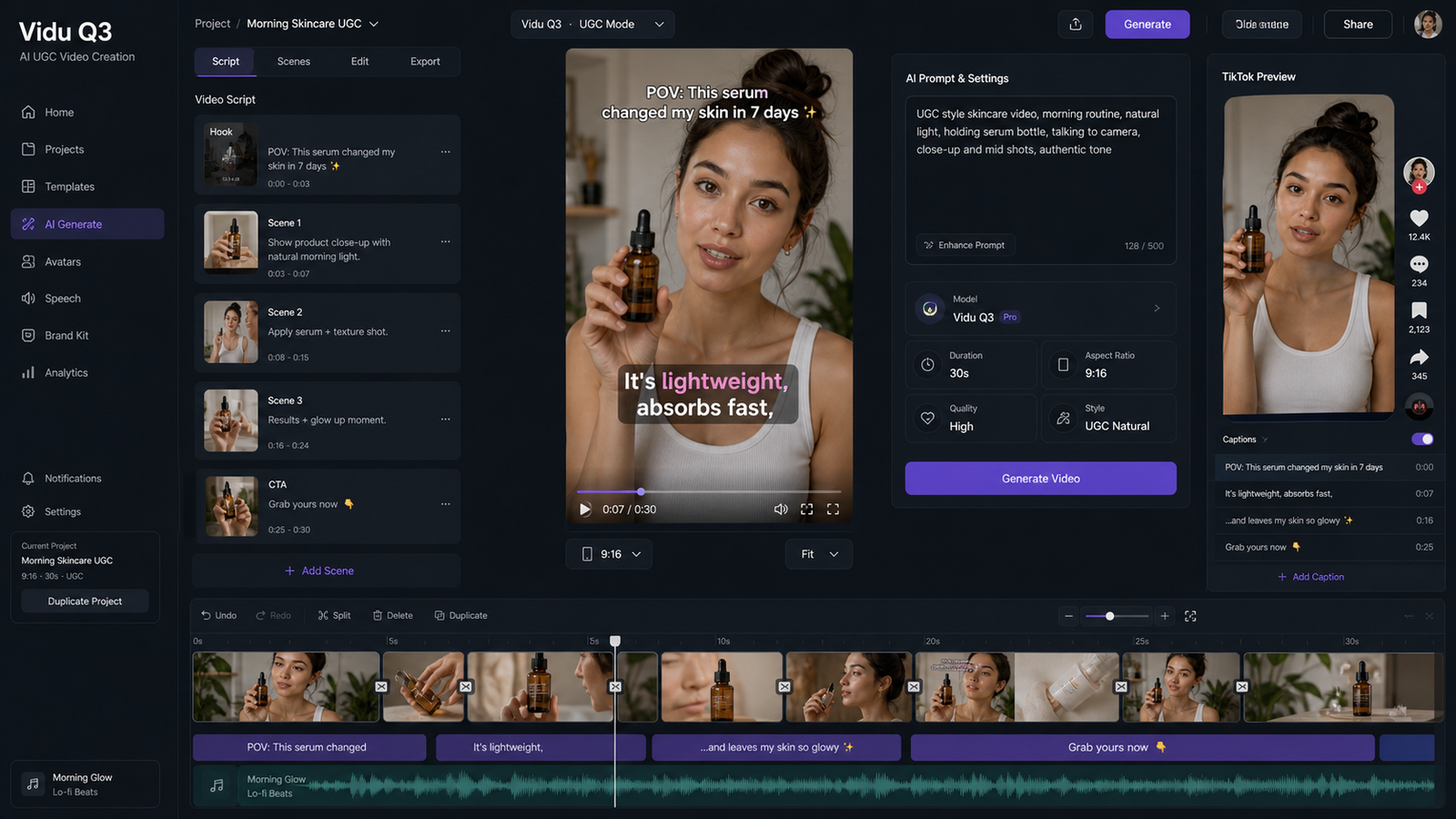
AITryon is especially relevant when your AI video task is connected to fashion, product promotion, or social commerce. The AI product-to-video workflow is useful when you want to turn product assets into ad concepts. The fashion photo to video AI tool path is useful when a person, outfit, pose, or clothing shape should stay recognizable.
Use turn product photos into AI videos workflows when the product must remain visually consistent. Use TikTok video generator prompts when you need a vertical hook, creator-style pacing, product action, and CTA.
For Gemini Omni, add multimodal context: uploaded photo, desired dialogue, music cue, sound effect, and edit direction. For Veo 3, describe the scene directly: subject, setting, camera, lighting, audio, and ratio. In both cases, keep the product, clothing, or person consistent and avoid unsupported claims.

Production Checks Before Choosing Gemini Omni or Veo 3
Do not choose a production model until you have checked the live settings. Gemini Omni availability, Veo model access, pricing, credit cost, audio support, resolution, duration, commercial rights, and output settings may change quickly.
Review these items:
- Availability: Confirm Gemini Omni and Veo 3 access in your live TryOn AI account.
- Model version: Check whether you are using Veo 3, Veo 3.1, or another available workflow.
- Pricing and credits: Verify current cost before testing many variations.
- Audio support: Confirm dialogue, music cue, sound effect, ambient sound, and voiceover options.
- Resolution and duration: Match settings to TikTok, ads, product pages, or fashion lookbooks.
- Commercial rights: Review TryOn AI terms and source asset permissions.
- Privacy settings: Protect unreleased fashion collections, client assets, and product references.
- Product claims: Avoid medical, beauty, performance, or transformation claims that cannot be supported.
- Platform rules: Check TikTok, Instagram, YouTube, marketplace, and paid ad policies.
The safest workflow is to test both models with the same prompt, compare the outputs, then verify rights and settings before using the video commercially.

Recommended Articles for Gemini Omni, Veo 3, and TryOn AI Workflows
Use these articles when you want more background on Gemini Omni, Veo 3.1, TryOn AI photo-to-video, TikTok UGC, and AI fashion video workflows.
Related articles:
- Gemini Omni Release Rumor: What Google's Next AI Video Move Could Mean for Fashion
- How to Use Veo 3.1 to Generate Stunning AI Try-On Videos
- How to Use TryOn AI's Photo-to-Video Tool with the Latest Video AI Models
- Kling AI 3.0 Video Generator: New Features, 1080p Cinematic Results, and a UGC Workflow
- AI TikTok UGC Video Maker: TryOn AI Prompt Templates and Workflow
- AITryOn Website Updates: A New Creative Cockpit for AI Fashion Images and Videos
People also read:
- Gemini Omni Latest Info: What Google's Rumored Video Update Could Change for AI Creators
- Gemini Omni Release Prediction 2026: What It Could Mean for AI Video Generation
- Gemini Omni New Model Latest Info: What We Know, What's Leaked, and What Creators Can Use Now
- Gemini Omni Latest Info: What It Could Mean for AI Video Generation
- How to Turn Images Into Videos with Google Veo 3 on Flyne AI
- Veo 3.1 vs Sora 2: Which AI Video Model Performs Better?

FAQ: Gemini Omni Upgrade vs Veo 3 on TryOn AI
Is Gemini Omni an upgrade over Veo 3?
Gemini Omni may represent an upgrade direction for multimodal AI video workflows, but do not assume it fully replaces Veo 3 unless current live access and features confirm that for your use case.
Should I use Gemini Omni or Veo 3 for fashion videos?
Use Veo 3 first when you need a practical cinematic or photo-to-video path now. Watch or test Gemini Omni when your fashion workflow needs multimodal inputs, dialogue, music cue, sound effects, and editing-style flexibility.
Which model is better for UGC ads?
Veo 3 is a practical first test for structured UGC prompts with a clear creator scene. Gemini Omni is worth testing when the ad concept needs richer multimodal context or flexible revision.
Can I use TryOn AI for product-to-video workflows?
Yes, TryOn AI includes product-to-video and photo-to-video workflow pages that are useful for product sellers, fashion brands, and UGC editors. Always review output accuracy and rights before publishing.
Should I test the same prompt in both models?
Yes. Testing the same prompt is the fairest way to compare realism, motion, audio, prompt following, and editing flexibility. Keep ratio, duration, and source assets similar when possible.

Conclusion: Use Gemini Omni as an Upgrade Watch, Use Veo 3 for Practical Tests
The careful answer to Gemini Omni upgrade vs Veo 3 is this: watch Gemini Omni for a more multimodal Google-style video workflow, and use Google Veo 3 AI video generator workflows when you need a more established cinematic generation path today. TryOn AI is useful because it gives fashion brands, creators, product sellers, and UGC editors practical places to test model pages, photo-to-video, product-to-video, and TikTok-style workflows.
Before choosing one for production, test the same prompt in both tools if available. Compare realism, motion, audio, prompt following, product or fashion consistency, editing flexibility, rights, pricing, credits, and output settings. That workflow-first test is more useful than assuming any model is universally better.