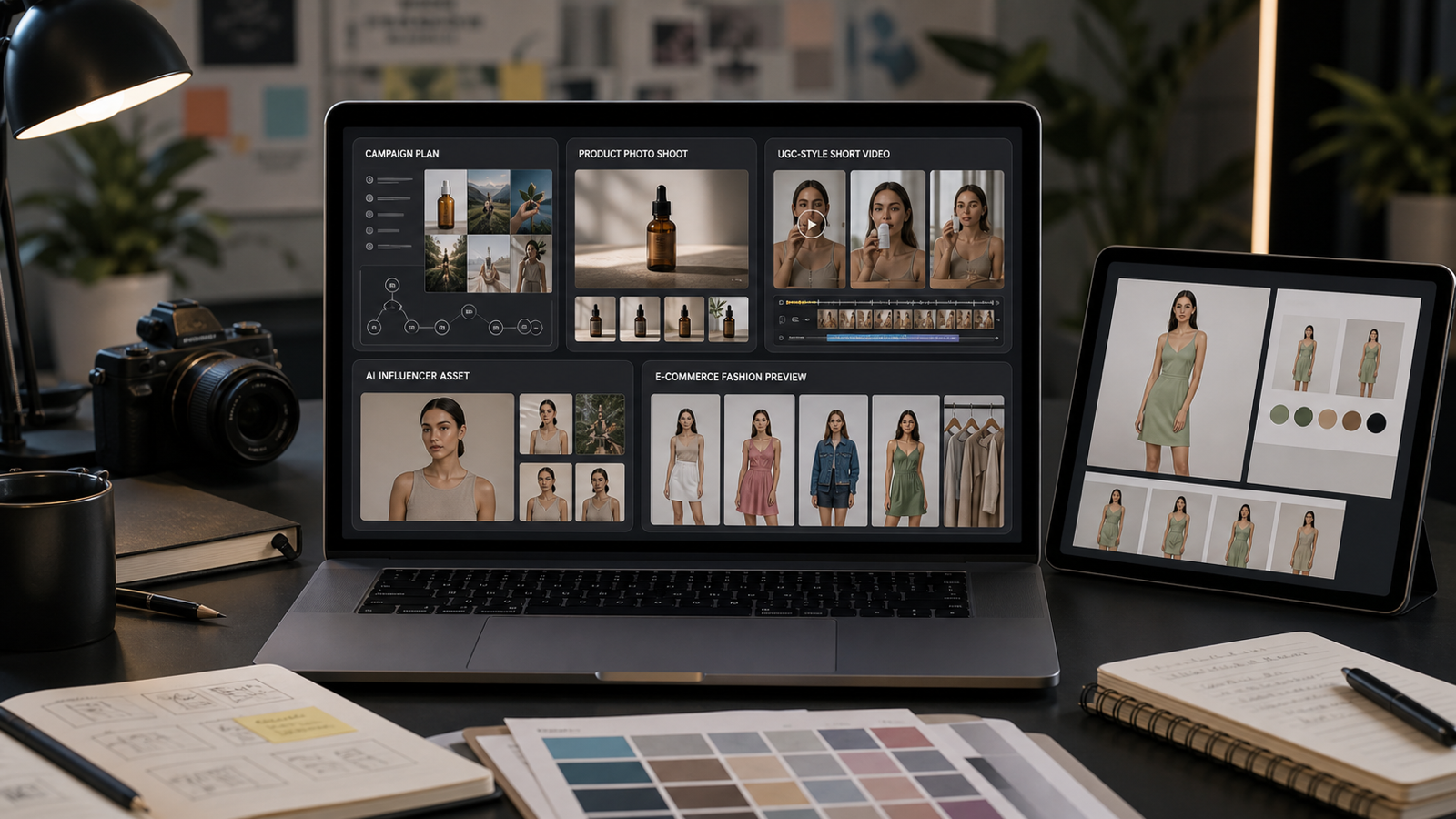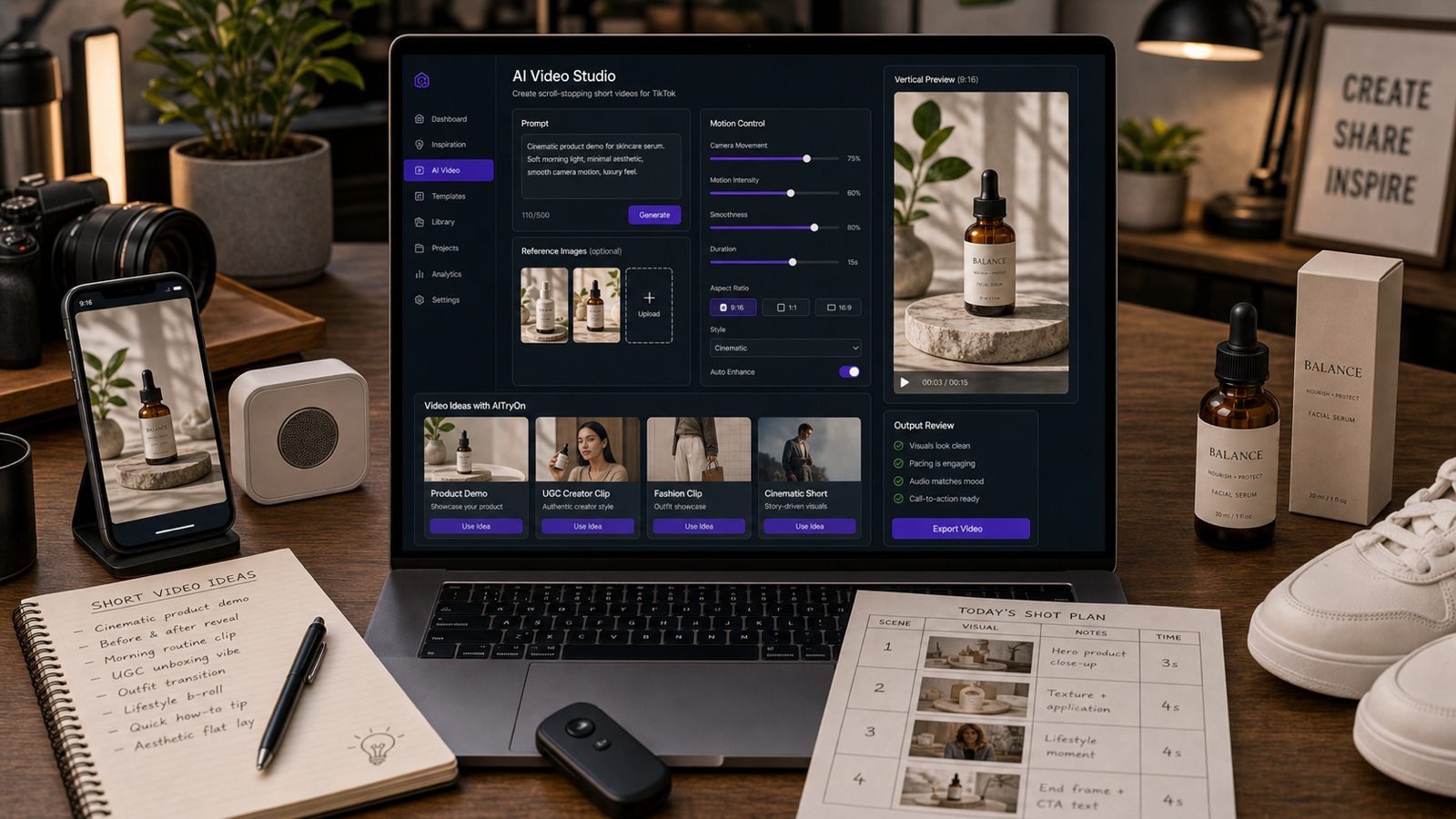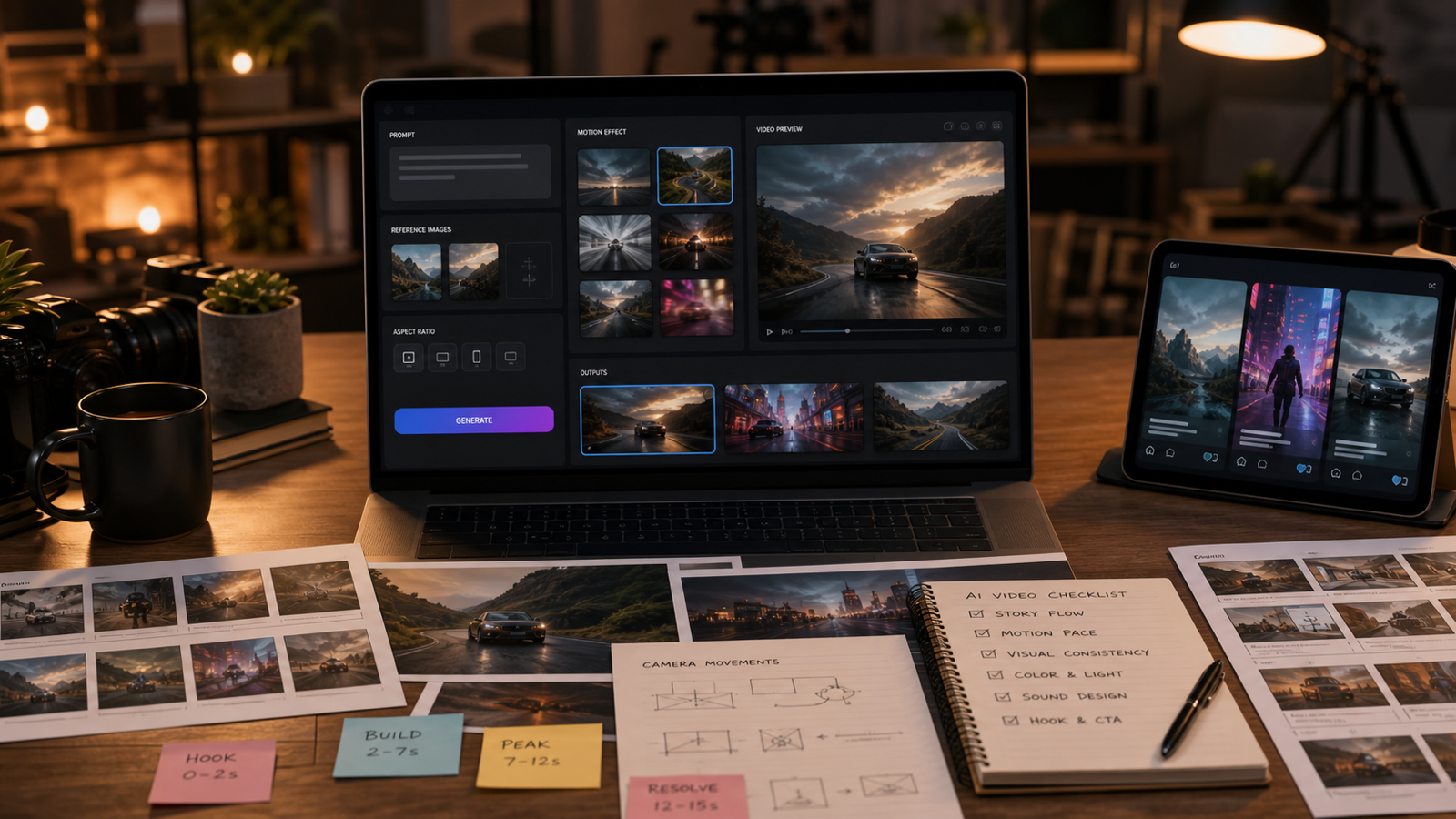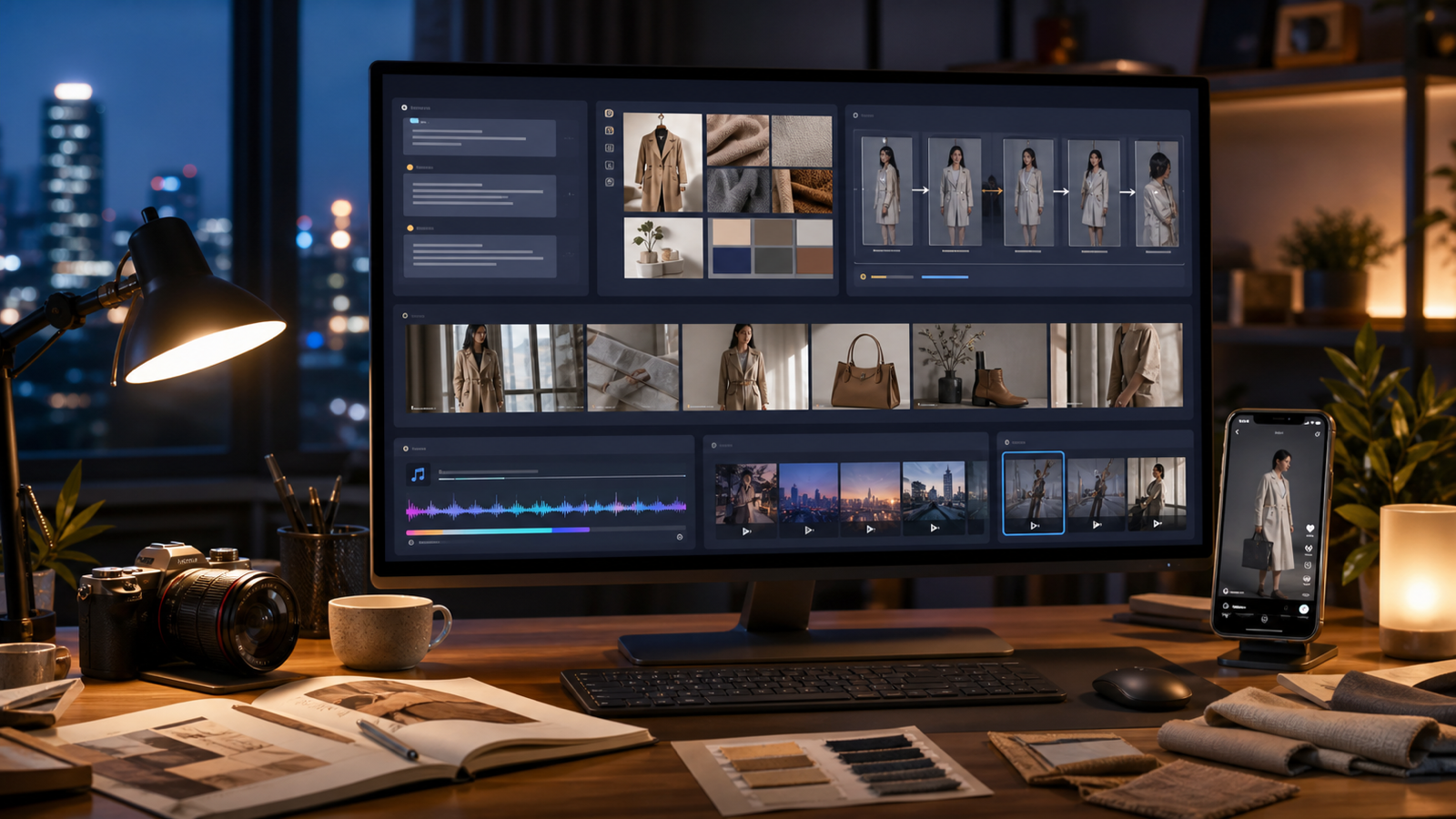
Google Veo 3 video creation guide searches usually come from creators who want one thing: a reliable way to turn a product idea, fashion image, UGC concept, or short scene into a usable AI video draft. TryOn AI is a practical place to test that workflow because it brings the Veo 3 AI Video Generator together with Gemini Omni AI Video Generator, AI Product to Video, Photo to Video, TikTok Video Generator, and other AI video tools.
Use this guide to plan cinematic clips, image-to-video tests, fashion try-on videos, ecommerce ads, creator-style product demos, and short social drafts. For current model details, compare TryOn AI's live pages with Google's official Veo and Gemini documentation before publishing a final campaign.
Quick Summary: Google Veo 3 Video Creation Guide for TryOn AI
The best starting point is to treat Google Veo 3 AI video generator workflows as structured creative production, not one-line prompting. A strong Veo 3 text to video prompt should define the subject, action, scene, camera, lighting, audio direction, style, and export format in one clean brief.
TryOn AI is useful because creators can move between model-led video generation and practical commerce workflows. A fashion seller might start from a product photo, test a photo to video AI for fashion clip, then adapt the same concept into a UGC product video generator flow for TikTok, Reels, or Shorts. A filmmaker might use Veo 3 for a cinematic mood test, then compare the result with Kling 3.0, Seedance 2.0, or Vidu Q3 on the same platform.
For a clean workflow, use this order:
- Choose the goal: product ad, fashion try-on, UGC demo, cinematic scene, or meme/social clip.
- Pick the starting mode: text-to-video, image-to-video, product-to-video, or photo-to-video.
- Write the prompt with camera, motion, lighting, and audio cues.
- Generate short drafts and compare stability, product accuracy, pacing, and brand fit.
- Review export settings, usage rights, watermarks, and platform rules on the live pages before final delivery.
This keeps the AI video generator for creators workflow fast without turning the draft into an unreviewed final asset.

How to Use Veo 3 on TryOn AI for Text-to-Video and Image-to-Video
Veo 3 is strongest when the prompt reads like a compact production brief. Instead of asking for a "cool product ad," define what the camera sees, what changes during the clip, and how the audio should support the scene. Google's official Veo materials, including the Google DeepMind Veo page and Gemini API video docs, are the right places to check the latest supported modes and model behavior.
For text-to-video on TryOn AI, start with a direct scene prompt. Use the Veo 3 AI Video Generator page when the idea begins as language: a fashion street clip, a product reveal, a three-shot mini story, or a cinematic social ad. Keep the action small enough for a short video. A walking model, rotating product, opening box, creator hand gesture, or slow camera push-in usually gives the model a clearer target than a crowded scene with many simultaneous actions.
For image-to-video, begin with a strong reference image and write what should stay stable. If the product shape, clothing silhouette, label area, pose, background, or color palette matters, name it directly. Then add the motion: camera drift, slow rotation, fabric movement, light sweep, hand pickup, or background ambience.
A simple Veo 3 image to video workflow looks like this:
- Upload the product, outfit, portrait, or scene image.
- Choose the most relevant TryOn AI workflow, such as Photo to Video or AI Product to Video.
- Prompt the motion and audio mood in plain production language.
- Generate multiple short variants with different camera movement and pacing.
- Select the draft that preserves the product or subject most consistently.
Use TryOn AI as the workspace when you want to compare Veo 3 video generator results against adjacent model workflows without rebuilding the creative brief from scratch.

Omni Flash Video Creation: Dialogue, Audio Cues, and Multimodal Planning
Omni Flash video creation is best understood as a planning style for multimodal video: text brief, reference image, product context, dialogue direction, music cue, sound effect, and editing rhythm all work together. TryOn AI's Gemini Omni AI Video Generator page is the natural place to explore Gemini Omni video prompt guide ideas alongside Veo 3 on TryOn AI.
The difference is not just model choice. Veo 3 prompts often focus on cinematic scene construction, while Gemini Omni Flash video workflow planning often asks you to coordinate more inputs and directions. For a UGC ad, that means writing the spoken hook, hand movement, product reveal, room tone, and vertical framing into one brief. For a fashion video, it means preserving outfit identity while directing the walk, lighting, fabric motion, and music mood.
Use this structure when planning an Omni Flash-style text to video or image to video draft:
- Brief: what the clip is for and who will watch it.
- Reference: the product, person, outfit, or scene identity to preserve.
- Dialogue: a short line, delivery mood, or silence instruction.
- Audio: ambient sound, music cue, sound effect, or spoken hook.
- Camera: handheld, push-in, side tracking, top-down, or static close-up.
- Review goal: product clarity, motion coherence, fashion fit, or social pacing.
For current Google-side terminology and availability, compare public TryOn pages with Google's Gemini video generation overview and Gemini API documentation. In the article workflow itself, keep the creative focus practical: better inputs, cleaner prompts, and sharper draft review.

Product, Fashion, Try-On, and UGC Video Workflows on TryOn AI
TryOn AI fits product and fashion video work because the platform is organized around creator use cases, not only model names. The AI Product to Video page supports product to video AI planning, the Photo to Video page supports AI try-on video generator and AI fashion video generator ideas, and the TikTok Video Generator page helps shape drafts for short-form social ads.
For ecommerce, start with the product asset and decide what the clip must prove visually. A skincare bottle may need a clean tabletop rotation, condensation, hand pickup, or bathroom shelf context. A sneaker may need low-angle movement, pavement texture, dust, and a clear no-logo product silhouette. A jacket may need a slow turn, fabric movement, sleeve detail, and an editorial lighting mood.
For UGC ads, write the prompt around a believable creator action. A fictional creator can hold the product near a window, demonstrate one use case, react naturally, and deliver a short spoken hook. Keep the scene simple so the AI product video maker can focus on product clarity and human motion.
For fashion try-on clips, separate identity from motion. The image reference should preserve the clothing silhouette, color palette, texture, and fit. The prompt should add the model's turn, walk, posture, camera direction, and audio atmosphere. This makes the AI try on video workflow more controlled than asking for a full fashion film in one sentence.
Practical TryOn AI workflow map:
- Cinematic ads: use Veo 3 for mood, camera, lighting, and sound design.
- Product videos: use AI Product to Video when the product image is the anchor.
- Fashion clips: use Photo to Video for outfit references and model movement.
- UGC demos: use TikTok Video Generator for vertical pacing and creator-style scenes.
- Model comparison: test the same brief in Veo 3, Gemini Omni, Kling 3.0, Seedance 2.0, or Vidu Q3 when you need different motion styles.
Before posting, check the live TryOn AI Pricing page and the selected model page for current credits, export behavior, watermarks, and plan details.

Veo 3 AI Video Prompts and Omni Flash Prompt Examples
Good prompts make the draft easier to judge. They do not need to be long, but they should name the creative variables that affect the output: subject, action, setting, camera, lighting, audio, style, aspect ratio, and use case.
Reusable Veo 3 text-to-video prompt formula:
Create a [duration] AI video for [platform/use case]. Subject: [person/product/object/scene]. Action: [specific movement or event]. Setting: [location/background]. Camera: [push-in/tracking shot/pan/handheld/static close-up/dolly]. Lighting: [studio/natural/golden hour/neon/cinematic]. Audio: [dialogue/sound effect/ambient sound/music cue/silent draft]. Style: [realistic/cinematic/UGC/product ad/fashion/editorial/meme]. Output should be [aspect ratio] for [TikTok/Reels/Shorts/product page/blog/ad].
Reusable image-to-video prompt formula:
Use this uploaded image as the first frame. Preserve [subject/product/person/outfit/pose/composition/color palette] while adding [camera motion/subject action/background movement/lighting shift/audio mood]. Keep [identity/product shape/fabric texture/layout] stable. Make the final video suitable for [fashion try-on/product ad/social clip/story scene].
Reusable Omni Flash-style multimodal prompt formula:
Use [text brief], [reference image], and [audio direction] to create a short video. Preserve [product/person/scene identity]. Include [dialogue line / voice mood / music cue / sound effect]. Camera should [specific camera movement]. The scene should feel [mood/style]. Keep the motion coherent, the audio direction aligned with the visuals, and the result suitable for [platform/use case].
Prompt examples:
- Create a 6-second fashion try-on video. A fictional model walks across a minimalist studio wearing a neutral jacket, soft side lighting, clean tracking camera, realistic fabric movement, subtle room ambience, 9:16.
- Use this product image as the first frame. Preserve the product shape, label area, and material texture. Add a slow tabletop rotation, soft studio light, gentle shadow movement, premium ecommerce ad style, 9:16.
- Create a cinematic product reveal. A black box opens under dramatic studio light, slow push-in camera, soft smoke, metallic sound effect, premium launch mood, 16:9.
- Create a TikTok-style UGC product demo. A fictional creator holds the product near a window, casual handheld camera, friendly expression, natural hand motion, quick spoken hook, 9:16.
- Create a fashion street clip. A fictional model walks through a rainy city street at night, neon reflections, gentle coat movement, side-tracking camera, cinematic realism, 9:16.
- Create a product-to-video ad for a sneaker. Show the shoe on urban pavement, low-angle camera, golden-hour light, subtle dust motion, energetic music cue, no real brand logo.
- Use this outfit image as a reference. Preserve the clothing silhouette and color palette. Create a try-on motion clip with a slow turn, clean studio background, natural fabric movement, and editorial lighting.
- Create a social meme video. A fictional office worker slowly turns to the camera with exaggerated disbelief, quick zoom-in, clean lighting, blank caption space, funny but realistic timing, 9:16.
- Create a food product video. A drink can sits on a table during a summer picnic, condensation moving, camera push-in, bright natural light, crisp opening sound effect, 4:5.
- Create a three-shot mini story: shot one shows a product on a desk, shot two shows a creator picking it up, shot three shows the final lifestyle use. Keep lighting, subject, and color tone consistent.
- Create a cinematic AI try-on ad for a winter coat. A fictional model stands near a window, snow outside, slow camera movement, soft fabric detail, warm interior lighting, no real brand logo.
- Use this product photo and create three variants: one Veo 3 cinematic ad, one Omni Flash-style dialogue ad, and one TikTok UGC demo. Keep the product stable and change only pacing, audio direction, and camera language.
For deeper model context, compare the TryOn AI guide Gemini Omni Upgrade vs Veo 3 with Google's official pages such as Google AI Studio Veo 3.1 and Build with Veo 3 in the Gemini API.

FAQ and Publishing Checklist for AI Video Drafts
Use the final review stage to turn a good-looking generation into a usable creative draft. This step is simple: compare the output against the brief, then confirm the practical details on the live model and pricing pages.
Pre-publish checklist:
- Model page: confirm the selected Veo 3, Gemini Omni, Kling 3.0, Seedance 2.0, or Vidu Q3 workflow is currently available on TryOn AI.
- Input mode: confirm whether your chosen flow supports text, image, product photo, first frame, audio direction, or other reference inputs.
- Export: review duration, aspect ratio, resolution, watermark, and download behavior in the live workspace.
- Usage: check TryOn AI terms, plan details, commercial-use language, privacy settings, and source-asset rights for your campaign.
- Quality: review product shape, clothing fit, face and hand stability, audio alignment, motion continuity, and platform-safe framing.
Is Veo 3 better for cinematic videos or product ads?
Veo 3 is a strong fit when the brief needs cinematic camera language, lighting, motion, and audio direction. For ecommerce product clarity, pair Veo 3 prompting with TryOn AI's product-to-video workflow so the reference asset stays central.
How should I use Gemini Omni Flash video workflow ideas?
Use Gemini Omni Flash-style planning when the creative depends on multiple inputs: reference image, spoken hook, music cue, sound effect, and scene context. This is helpful for UGC ads, fashion explainers, and short social videos that need the visual and audio idea to match.
Can I create AI try-on videos from photos?
Yes, TryOn AI's Photo to Video workflow is the right starting page for photo to video AI for fashion and AI try-on video generator tests. Use clear fashion photos and write prompts that preserve clothing silhouette, texture, color, and fit.
What aspect ratio should I use?
Use 9:16 for TikTok, Reels, Shorts, and most UGC product demos. Use 16:9 for blog visuals, product page banners, cinematic scene tests, and horizontal ad drafts. Use 4:5 when the clip is meant for feed-style social placements.
What should I check before publishing a client or commercial video?
Confirm the current TryOn AI plan terms, pricing, credit cost, watermark/export rules, privacy settings, source-asset permissions, and commercial-use terms. Also review the draft manually for product accuracy, identity stability, and audio/visual alignment.
Conclusion
A strong Google Veo 3 video creation guide is really a workflow guide: write a clear scene brief, choose the right TryOn AI mode, test short variants, and review the result like a creative draft. TryOn AI is a practical hub for Veo 3 on TryOn AI, Gemini Omni video prompt guide work, AI product video generator tests, AI try-on video generator drafts, and TikTok UGC video maker workflows.
Start with one product, one fashion look, or one short scene. Then create three versions: a cinematic Veo 3 draft, an Omni Flash-style multimodal draft, and a social-first UGC draft. The strongest one becomes your base for editing, captioning, publishing, and campaign testing.